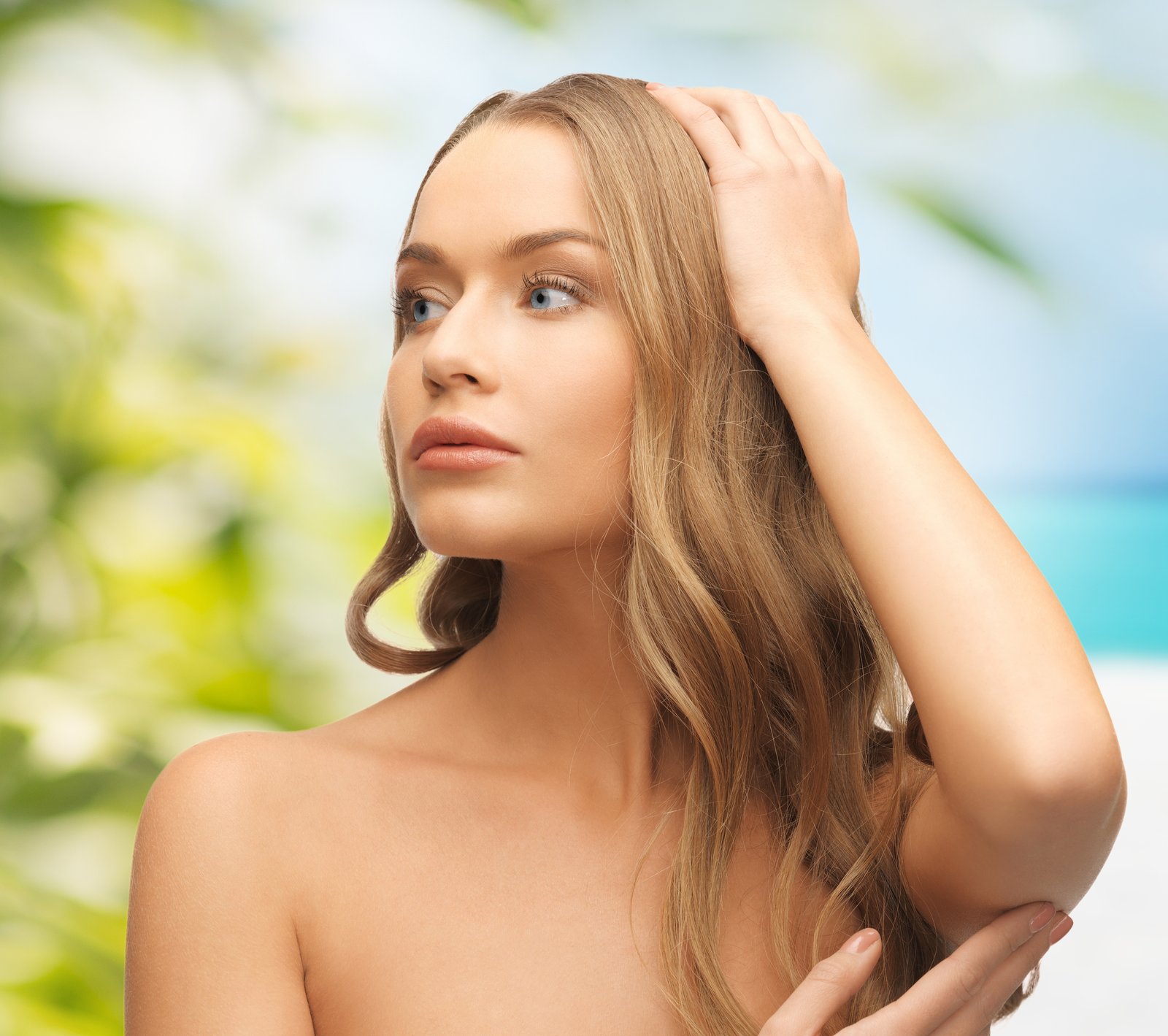
I once spent four hours on a single strand of hair.
Not because I’m precious about my work, but because the rest of the composite, a woman emerging from a storm cloud for an album cover, was already locked in. The lighting read correctly. The color grading was consistent. The shadows fell where physics said they should. But that one strand of hair, catching the backlight, was sitting on top of the image instead of inside it. The mask was killing the fringe luminosity. And no matter how good everything else was, that hair was screaming “fake” to anyone who spent more than two seconds looking.
That’s the nature of masking. It’s the unsexy discipline that determines whether your composite stands up or falls apart.
Why Your Selection Is Actually a Lie
Every mask you make in Photoshop is a grayscale approximation of reality. White reveals, black conceals, and the gray values in between represent partial transparency. That sounds simple until you try to mask a subject against a blown-out sky, or pull a model with fine flyaway hair off a patterned background.
The real problem is that a mask treats every pixel as a binary or near-binary decision, but light doesn’t work that way. At the edge of any real object, there’s a zone where the subject and background are optically blending, where the lens has introduced some blur, where semi-transparent strands of hair are letting background color pass through. A hard mask ignores all of this. It draws a line where reality draws a gradient, and the human eye, which has been reading edges since before we had language, notices immediately.
This is why so much compositing advice focuses on refining edges rather than making better initial selections. The initial selection is just a rough draft.
The Selection Stack: Three Passes, Not One
My workflow treats every complex mask as three separate operations layered together, not a single action I refine until it looks acceptable.
The first pass is a broad, rough selection using Select > Subject in Photoshop 2024 or later. It’s fast and it gets the large shapes right. I output this as a layer mask immediately. Don’t fuss with it yet.
The second pass is edge-specific. I open Select and Mask (Alt+click the mask thumbnail), set the View Mode to On Black, and focus entirely on the edge zone using the Refine Edge Brush at a radius between 20 and 60 pixels depending on the subject. For hair or fur, I push Output to “New Layer with Layer Mask” and check Decontaminate Colors at around 50 percent. This setting actively removes background color fringing from the edge pixels, which is the single most underused tool in Photoshop for this kind of work.
The third pass is manual painting directly on the mask with a soft brush set to 10-15 percent opacity. This is where I address specific problem areas: the transition under a chin, a sleeve edge with motion blur, a strand of hair the refine brush missed. I work at 200 percent zoom or higher and I never use a hard brush for this step. A brush hardness above 30 percent at this stage will reintroduce the same edge artifacting you just spent twenty minutes removing.
Channel Masking When the Subject Gets Difficult
When Refine Edge isn’t cutting it, usually because the background is too busy or the tones between subject and background are too similar, I go to channels.
Open the Channels panel and cycle through Red, Green, and Blue individually looking for the channel with the strongest contrast between your subject and the background. For most skin tones against mid-range backgrounds, the Blue channel tends to give you the worst contrast and the Red or Green gives you the most separation. Duplicate that channel, then use Levels (Ctrl+L on the duplicate) to push the contrast hard: drag the black input slider right to around 80-100 and the white input slider left to around 160-180. You’re building a black and white matte, not a photograph. Then Ctrl+click the channel thumbnail to load it as a selection, return to your Layers panel, and apply it as a mask. You’ll still need to do cleanup painting, but you’re starting from a much more accurate base.
The Luminosity Edge Problem Nobody Talks About
Here’s the issue I run into constantly on backlit subjects: even a perfect mask looks wrong if you don’t address edge luminosity separately.
When a subject is backlit, the edges of their hair or clothing pick up light from behind them. That specular rim isn’t something your mask can capture because it’s not about shape, it’s about light behavior. What you need is a separate edge-glow pass. I create a new layer set to Screen blending mode, clip it to the subject layer, and use a 2-3 pixel soft brush in the color of the background light source to manually paint that rim glow back in. On a sky-background composite with warm sunset light, this means a desaturated orange at around 30 percent opacity along the hair and shoulder edges.
I learned this the hard way on an album project where the artist was standing against a midday ocean, and no matter how clean my mask was, the figure looked pasted-in. Six months I’d spent studying how light behaves on water for other parts of that project, and the fix for the composite itself was twenty minutes of edge-glow painting I hadn’t thought to do.
The mask gets you close. The edge-glow pass makes it real.
Every Mask Fails Somewhere. Find It First.
Before I deliver any composite, I check the mask at 200 percent zoom against three different background colors: white, black, and a saturated mid-tone, usually a flat red. Problems that hide on a neutral gray background are immediately visible against pure white or red. This three-background check has saved me from sending out compositing work with halo fringing more times than I want to count.
The mask is never finished when it looks good. It’s finished when it fails to look wrong.
Comments (19)
Finally someone explains this in a way that actually makes sense.
Solid advice. Especially the part about taking your time with it.
The tip about the edge is where composites l was the missing piece for me. Thank you.
This is fantastic. I've been recommending this approach to my readers too.
The tip about the edge is where composites l was the missing piece for me. Thank you.
I've been looking for exactly this kind of tutorial. Perfect timing.
This should be required reading for anyone starting out.
Great breakdown. The step-by-step approach really helps.
This is exactly what I needed today. Been struggling with this for weeks.
Shared this with my photography group. Everyone loved it.
Finally someone explains this in a way that actually makes sense.
Just used this on a wedding shoot edit. Client was thrilled.
I tried this on a client project yesterday and the results were way better than expected.
Great article! I actually covered something related on my site — the color grading angle is really complementary to this.
Applied this to my portfolio shots and the improvement is noticeable.
Wow, I had no idea you could do this. Mind blown.
Clear and practical. No fluff. Appreciate that.
I tried this on a client project yesterday and the results were way better than expected.
This saved me so much time on my last edit. Wish I'd found this sooner.
Leave a Comment